License management
Description
Stream Offline CA requires a valid license exclusively entitled to stream-offline-ca before START can launch the runtime.
Use LICENSE > INSTALL in the operator console before starting Stream for the first time.
This page describes the license installation, validation, status, and startup checks performed by the appliance.
Install the license before starting Stream. The appliance blocks START when no readable and valid license is available.
|
License installation workflow
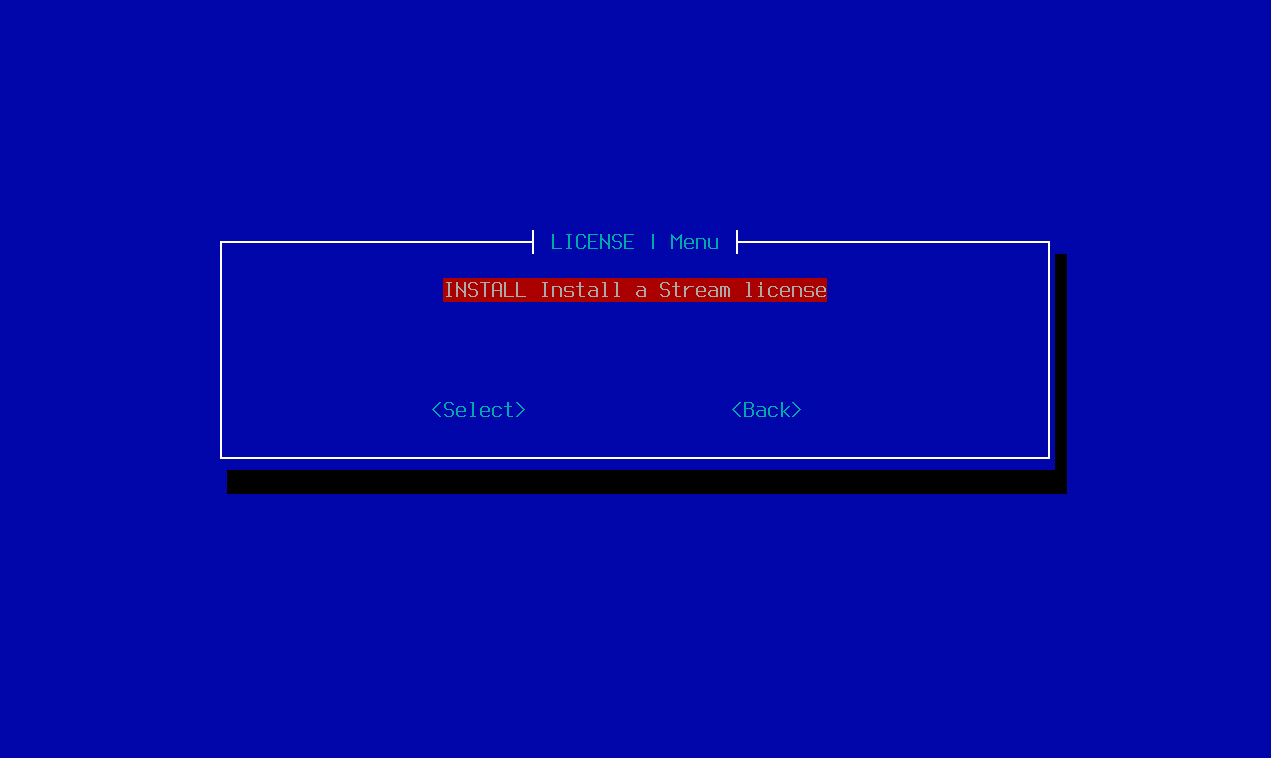
Open LICENSE from the operator console, then select INSTALL.
| Step | Behavior |
|---|---|
Select the license |
The appliance opens a file picker filtered on |
Stage USB input |
When the selected license is under the managed USB mountpoint, the appliance copies it to a temporary local staging directory before validation. This avoids validating or copying directly from removable media. |
Validate the file |
The selected file must:
The appliance performs deep validation of the selected license before installation. |
Install in offline configuration |
After validation, the license is installed as |
Apply to a running service |
When |
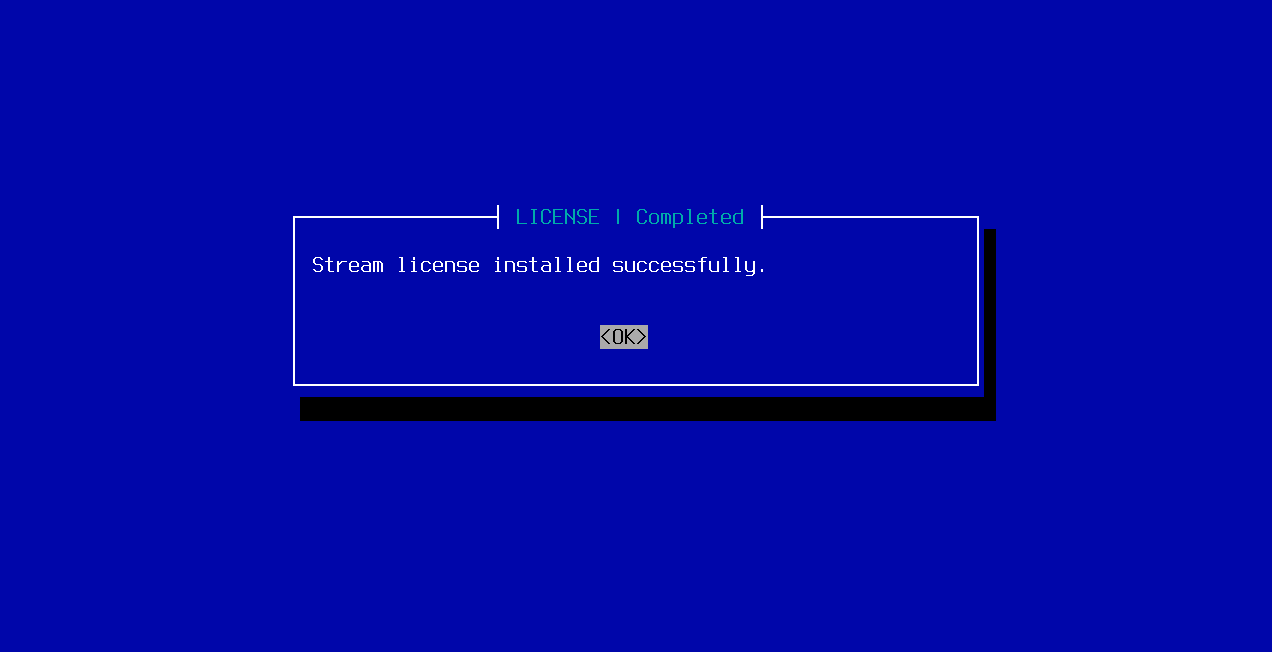
When the file has been installed and validated, the appliance confirms the license installation before returning to the operator menu.
License status
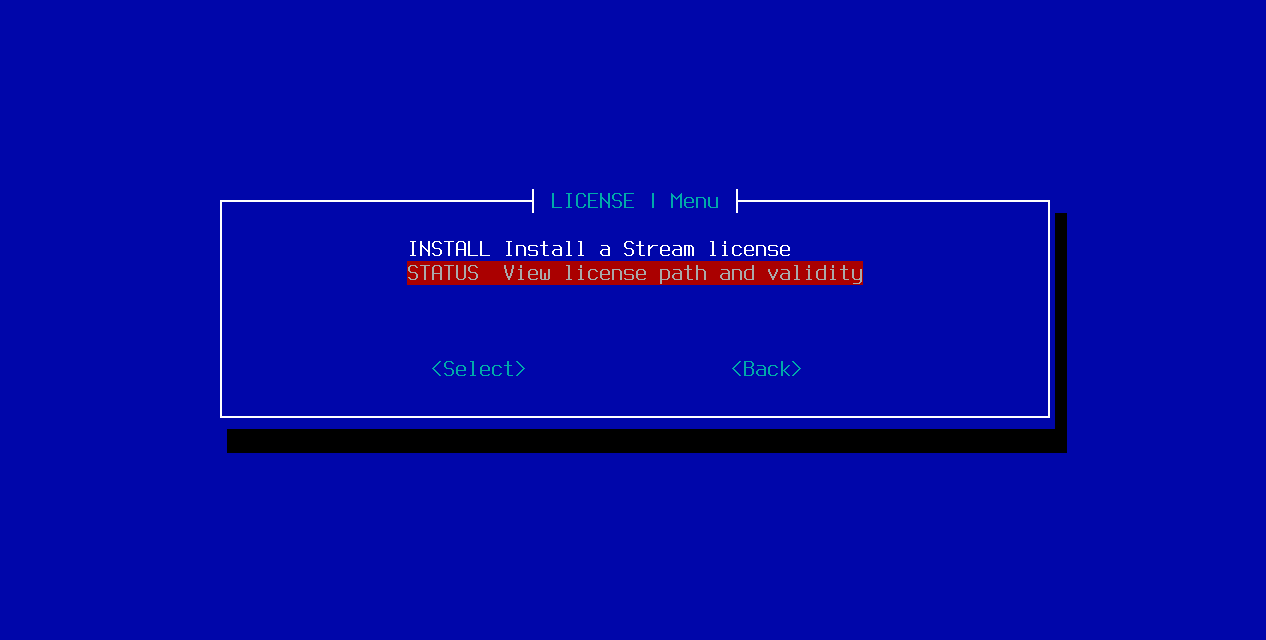
LICENSE > STATUS appears when a license file is already available.
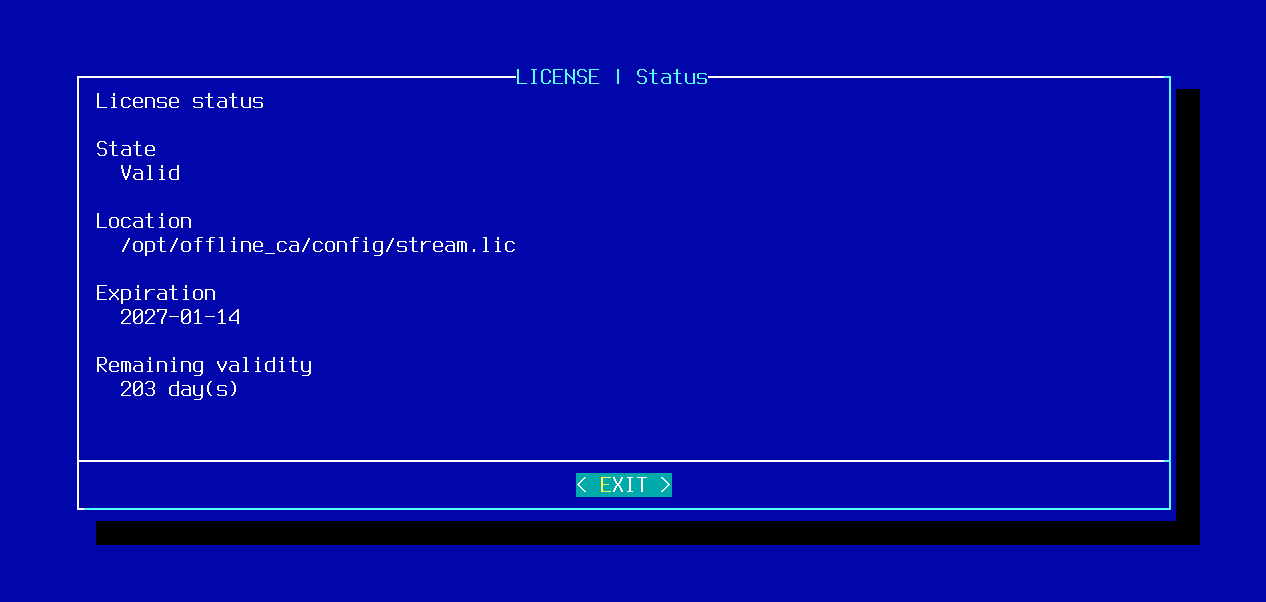
It displays the detected path, validation state, expiration date, and remaining validity.
The status screen provides the current validation state and detected license location.
|
The status calculation depends on the appliance system date. If the system date is wrong, a valid license can appear expired or invalid. |
| Status check | What is verified |
|---|---|
Discovery |
The appliance searches:
|
Readability |
The license must be readable and non-empty. |
License content |
The license content must:
|
System date |
The appliance compares the license expiration date with the current system date. An incorrect appliance date can make a valid license appear invalid. |
Validity state |
The status can be:
|
License states
| State | Meaning | Operator action |
|---|---|---|
|
The license:
|
Continue with |
|
The license is valid but expires within the appliance warning window. |
Continue only if the operation window is covered by the remaining validity. Plan renewal before the next ceremony. |
|
The appliance date is on or after the decoded expiration date. |
Install a replacement license or correct the appliance date if it is wrong. Do not start Stream with an expired license. |
|
The signed module list is empty or contains a module other than |
Install a dedicated Stream Offline CA license. A classic Stream license alone is insufficient. |
|
No license was found in the configured Stream license path, runtime license path, or offline |
Use |
|
A license path exists but the appliance cannot read it. |
Fix media or file permissions, or reinstall from approved media. |
|
The selected file exists but contains no data. |
Replace the file with a valid |
|
The file:
|
Select a different license file and keep the invalid filename in the operation report. |
Entitlement requirement
Every entry in the signed module list must be exactly stream-offline-ca after removing an optional numeric count suffix such as .10 or .25.
The list must not be empty.
A classic Stream license or a mixed license containing any other module is refused, even if stream-offline-ca is also present.
The refusal message names the modules found, including their count suffixes; unsupported diagnostic characters are replaced with ?.
Similar names or non-numeric suffixes do not grant access.
The appliance checks the signature before reading this entitlement and requires the current system date to be before the expiration date.
The same validation is used by installation, status and diagnostics, startup, and license backup/restore checks. A rejected installation or restore does not replace the installed license.