Monitored profiles
Introduction
Monitored certificate profiles apply to certificates whose lifecycle is not managed by Horizon. This means the certificates cannot be renewed or revoked through Horizon. However, you can still enhance them with labels, metadata, and ownership details, as well as configure notifications for supported certificate and request lifecycle events.
In essence, a monitored profile functions like a WebRA profile without a PKI connector configured.
The following lifecycle and request events are supported:
-
Expiration
-
Update
-
Migration
-
Recovery (if the private key was escrowed)
Configuring a monitored profile
1. Log in to Horizon Administration Interface.
2. Access Monitored Profiles from the drawer or card: Monitored profiles.
3. Click on  .
.
4. Fill in the mandatory fields.
Profile specific configuration
General
-
Name* (string input):
Enter a meaningful profile name, this setting will be the profile identifier. It must be unique for each profile. -
Enable (boolean):
Should the profile be enabled. The default value is set to true.
Crypto Policy
-
Authorized Key Types (multiselect):
Key Types that can be used for enrollment. An empty value means no restrictions. -
Private key escrowing (boolean):
Tells whether the private key should be escrowed by Horizon. The default value is set to false.-
Show PKCS#12 Password On Recover (boolean):
Tells whether the PKCS#12 password should be displayed on recover. The default value is set to false. -
Show PKCS#12 On Recover (boolean):
Tells whether the PKCS#12 should be displayed on recover. The default value is set to false. -
PKCS#12 Password Mode* (select):
Select how to generate PKCS#12 password:-
manual: prompt the user to choose its password. This is the default behavior.
-
random: have the password generated on Horizon side.
-
-
Password policy (select):
Select a previously created password policy. It will be enforced on PKCS#12 password for recovery and centralized enrollments. -
Store encryption type* (select):
Select an encryption algorithm from the list. The PKCS#12 will use this algorithm. The default value is set to DES_AVERAGE.
-
Common configuration for profiles
Languages
You can add more languages by clicking .
-
Language* (select):
Select a language. Supported languages are:-
en: English
-
fr: French
-
-
Display Name (string input):
Enter a display name. This will be the localized name of this profile. -
Description (string input):
Enter a description. This will be displayed on the list view of the profiles.
You can delete  the localization.
Grading Policies
You can select grading policies that will grade your certificate for a quick overview of its quality. For more information about the inner working of the grading policies in Horizon, please refer to the grading rules page.
Requests time to live
Configure the time your requests have before expiring.
| After expiration, requests are stored for an additional 30 days. This can be changed using configuration files. |
-
Enrollment request* (finite duration):
Must be a valid finite duration. The default value is set to seven days. -
Renewal request* (finite duration):
Must be a valid finite duration. The default value is set to seven days. -
Revocation request* (finite duration):
Must be a valid finite duration. The default value is set to seven days. -
Update request* (finite duration):
Must be a valid finite duration. The default value is set to seven days. -
Migration request* (finite duration):
Must be a valid finite duration. The default value is set to seven days. -
Recover request (finite duration):
Enabled on escrow: Must be a valid finite duration. The default value is set to seven days.
Workflow
Workflows builder
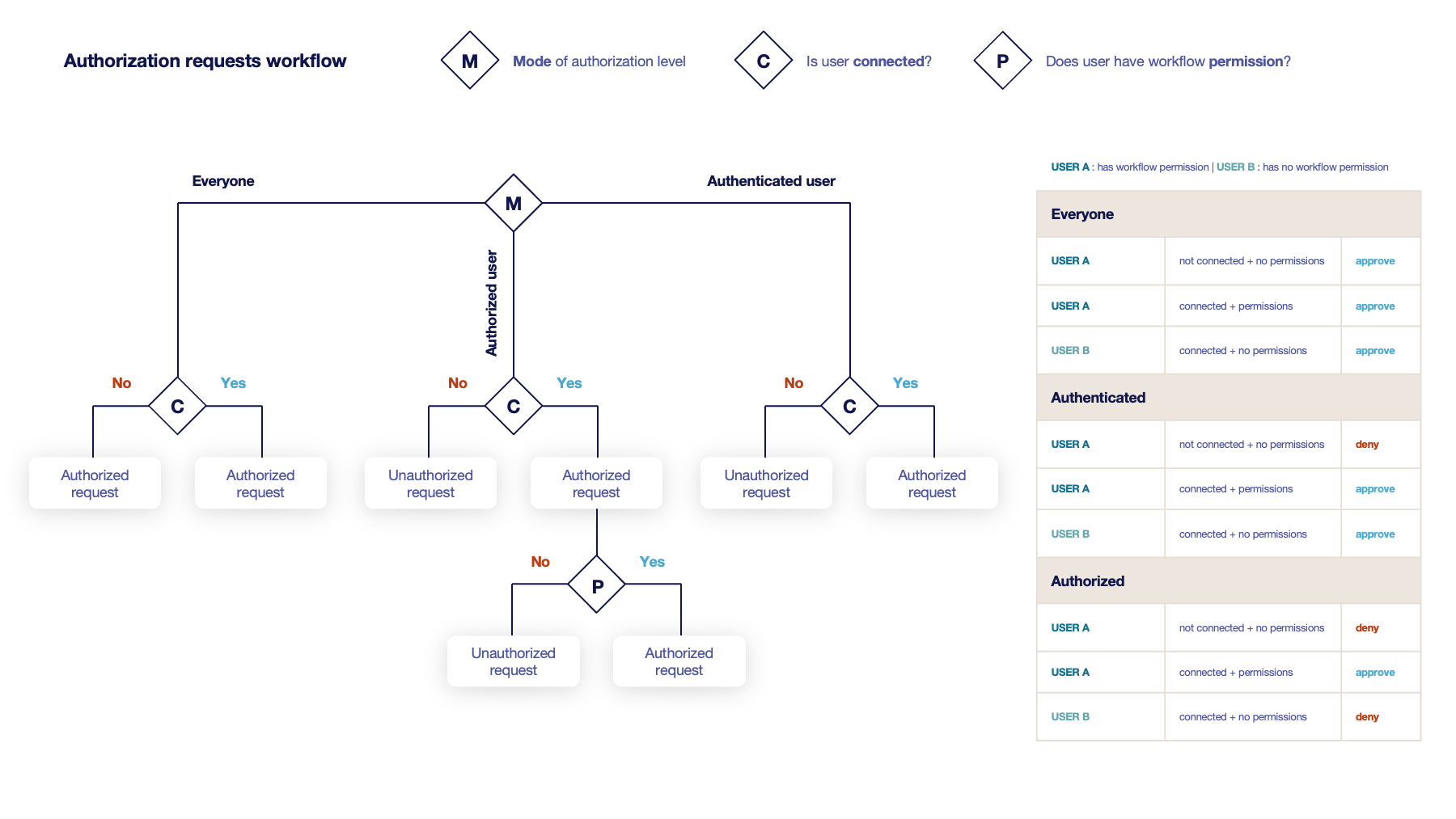
Configure custom rights for actions on this profile.
1. Select an authorization level for each workflow.
-
Everyone:
No authentication is required. -
Authenticated:
User has to be authenticated. -
Authorized:
User has to be authenticated and have an explicit authorizations.
2. Select an access level for identity providers.
You can remove the access level for an identity provider by clicking on 'x'.
Owner-related permissions
These permissions apply to the owners of a certificate (team or owner). An owner can always request the following actions, but this permission allows them to perform the action without validation.
-
Recover (boolean):
Grant self recover permission. The default value is set to false. -
Update (boolean):
Grant self update permission. The default value is set to false. -
Update (pop) (boolean):
Grant self update permission with owner being determined by Proof of Possession. This is used by horizon-cli. The default value is set to false.
Certificate Metadata
This section details how to define a custom structure for the labels, ownership policy and technical metadata, allowing certificates to hold rich information.
Labels
You can add more labels by clicking .
-
Name (select):
Select a preexisting label. -
Mandatory (boolean):
Should the label be mandatory. The default value is set to false. -
Editable by requester (boolean):
Tells whether the label should be editable by the requester. The default value is set to false. -
Editable by approver (boolean):
Tells whether the label should be editable by the approver. The default value is set to false. -
Default value (string input):
Set a default value to the label. -
Label value restriction
-
Whitelist (string input multiple):
The label value will have to be in the whitelist. Open the popup, enter the label value and press "enter" to add this value to the accepted value list. An empty whitelist means no restriction. -
Suggestions (string input multiple):
Add suggestions that will be displayed to the user. The user will be able to choose one of these values or enter its own. Open the popup, enter your suggestions and press enter to add this value to the suggestions. An empty suggestions list means no restriction. -
Regex (regex):
The label value will have to match the regex. Open the popup, enter the regular expression and click on the submit button to set the regex. An empty regex means no restrictions.
-
-
Computation rule (Computation rule input):
Set the value of this label to the value of the evaluated computation rule. This value will override any other value including the user input and the default value.
You can delete or reorder (drag and drop)  the label template.
Ownership policy
-
Owner
-
Mandatory (boolean):
Specify if the certificate’s owner is mandatory when submitting a request. -
Editable by requester (boolean):
Specify if the certificate’s owner can be overridden by the requester when submitting a request. -
Editable by approver (boolean):
Specify if the certificate’s owner can be overridden by the requester when approving a request. -
Computation rule (Computation rule input):
Set the value of the owner to the value of the evaluated computation rule. This value will override any other value including the user input.
-
-
Contact email
-
Mandatory (boolean):
Specify if the certificate’s contact email is mandatory when submitting a request. -
Editable by requester (boolean):
Specify if the certificate’s contact email can be overridden by the requester when submitting a request. -
Editable by approver (boolean):
Specify if the certificate’s contact email can be overridden by the requester when approving a request. -
Default contact email (string input):
Set a default contact email. This value must comply with the contact email restriction. -
Contact email restriction
-
Whitelist (string input multiple):
The contact email will have to be in the whitelist. Open the popup, enter the email and press "enter" to add this value to the accepted whitelist. An empty whitelist means no restriction. -
Regex (regex):
The contact email will have to match the regex. Open the popup, enter the regular expression and click on the submit button to set the regex. An empty regex means no restrictions.
-
-
Computation rule (Computation rule input):
Set the value of the contact email to the value of the evaluated computation rule. This value will override any other value including the user input and the default value.
-
-
Team
-
Mandatory (boolean):
Specify if the certificate’s team is mandatory when submitting a request. -
Editable by requester (boolean):
Specify if the certificate’s team can be overridden by the requester when submitting a request. -
Editable by approver (boolean):
Specify if the certificate’s team can be overridden by the requester when approving a request. -
Default team (string input):
Set a default team. This value must comply with the team restriction. -
Team restriction
-
Whitelist (string input multiple):
The team will have to be in the whitelist. Enter the team and press "enter" to add this value to the accepted whitelist. An empty whitelist means no restriction. -
Regex (regex):
The team will have to match the regex. Open the popup, enter the regular expression and click on the submit button to set the regex. An empty regex means no restrictions.
-
-
Computation rule (Computation rule input):
Set the value of the team to the value of the evaluated computation rule. This value will override any other value including the user input and the default value.
-
Metadata policy (overridable metadata)
| These metadata are technical metadata. They are used by Horizon or Third party connectors, updating them should be done with utmost care. |
| Metadata edition is not allowed on enroll. |
| Metadata edition is not available via the User Interface. It must be changed with API, using horizon-cli. |
You can allow the override of technical metadata by clicking .
-
Metadata* (select):
Select a metadata. -
Editable by requester (boolean):
Tells whether the metadata is editable by the requester. The default value is set to false. -
Editable by approver (boolean):
Tells whether the metadata is editable by the approver. The default value is set to false.
You can delete a metadata policy. This will not delete the metadata but will make it non editable.
Third-party policy
Available from 2.8.2
-
Synchronize data from discovery (boolean):
Enable overriding of third-party data during discovery. When enabled, the following logic applies:-
If a discovery attempts to set third-party data on a connector that is not referenced in the profile (by a trigger), the data will not be added.
-
If the connector is referenced in the profile, the discovery will override the existing data.
-
Notifications/Triggers
This section details how to configure notifications and triggers to perform actions on certificate and request lifecycle events.
Certificate lifecycle notifications
Notifications are sent when one of the following event is triggered by a certificate:
Enrollment |
Revocation |
Expire |
Update |
Migrate |
Renew |
Request lifecycle notifications
Notifications are sent when one of the following event is triggered by an Enroll/Revocation/Update/Migrate/Renew request:
Submit |
Cancel |
Revoke |
Approve |
Pending |
| Submit request events are not triggered when the user has the permission to perform the action directly. |
5. Click on the save button.
You can edit  , duplicate
  or delete the Monitored Profile.
|
You won’t be able to delete a Monitored Profile if it is referenced somewhere else. |