Testing & Validation
This section details how to test and validate your WinHorizon installation and configuration.
ADSI Test
Use the ADSI edit tool to verify that WinHorizon is properly registered in Active Directory.
1. Launch ADSI Edit from Administrative Tools or by running adsiedit.msc.
2. Connect to your configuration partition.
3. Navigate to Configuration > Services > Public Key Services > Enrollment Services.
4. Verify that you can see your WinHorizon enrollment service entry in the list.
If WinHorizon appears in the enrollment services, this confirms that it has been properly registered in Active Directory.
Manual Certificate Enrollment Test
To test certificate enrollment manually through WinHorizon:
1. Launch the Certificate Manager by running certlm.msc.
2. Navigate to Personal > Certificates.
3. Right-click and select All Tasks > Request New Certificate.
4. Follow the Certificate Enrollment wizard: - Click Next on the initial screen - Select the appropriate certificate template that has been configured for WinHorizon - Complete the enrollment process
5. Verify that the certificate is successfully issued and appears in your personal certificate store.
Troubleshooting Common Issues
Certificate Enrollment Fails
If certificate enrollment fails, check the following:
-
Verify that the WinHorizon service is running
-
Check that the client machine is a member of the appropriate Active Directory groups
-
Ensure that the certificate template permissions are correctly configured
-
Verify network connectivity between client and WinHorizon server
DCOM Connection Issues
If clients cannot connect to WinHorizon via DCOM:
-
Verify that the client groups are added to the "Distributed COM Users" group
-
Check Windows Firewall settings on the WinHorizon server
-
Ensure that the required network ports are open (135/TCP and dynamic RPC ports)
-
In the component services, check the security settings and remote launch for the WinHorizon application and ensure that
Remote LaunchandRemote Activationpermissions are granted to all Active Directory assets needing to enroll certificates.
For instance, if you want to set up WCCE to auto-enroll your domain computers, they will need remote activation specifically enabled for them as you can see in the screenshot below
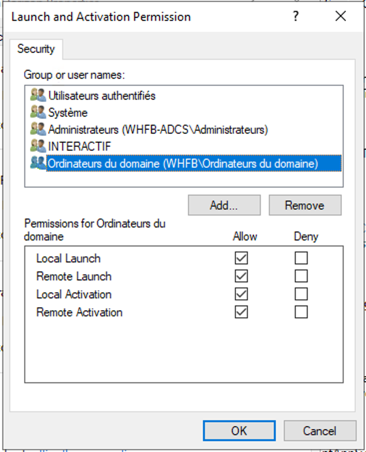
| Be careful these parameters are reset to default values after each installation, uninstallation or upgrade of WinHorizon |
Log Files and Diagnostics
WinHorizon logs can be found in the Windows Event Viewer and in the configured log directory. Check these logs for detailed error information when troubleshooting issues.
The WinHorizon service logs important events related to:
-
Service startup and configuration
-
Certificate enrollment requests
-
Communication with Horizon
-
Active Directory operations
-
DCOM connection attempts